Check the network name with a real person
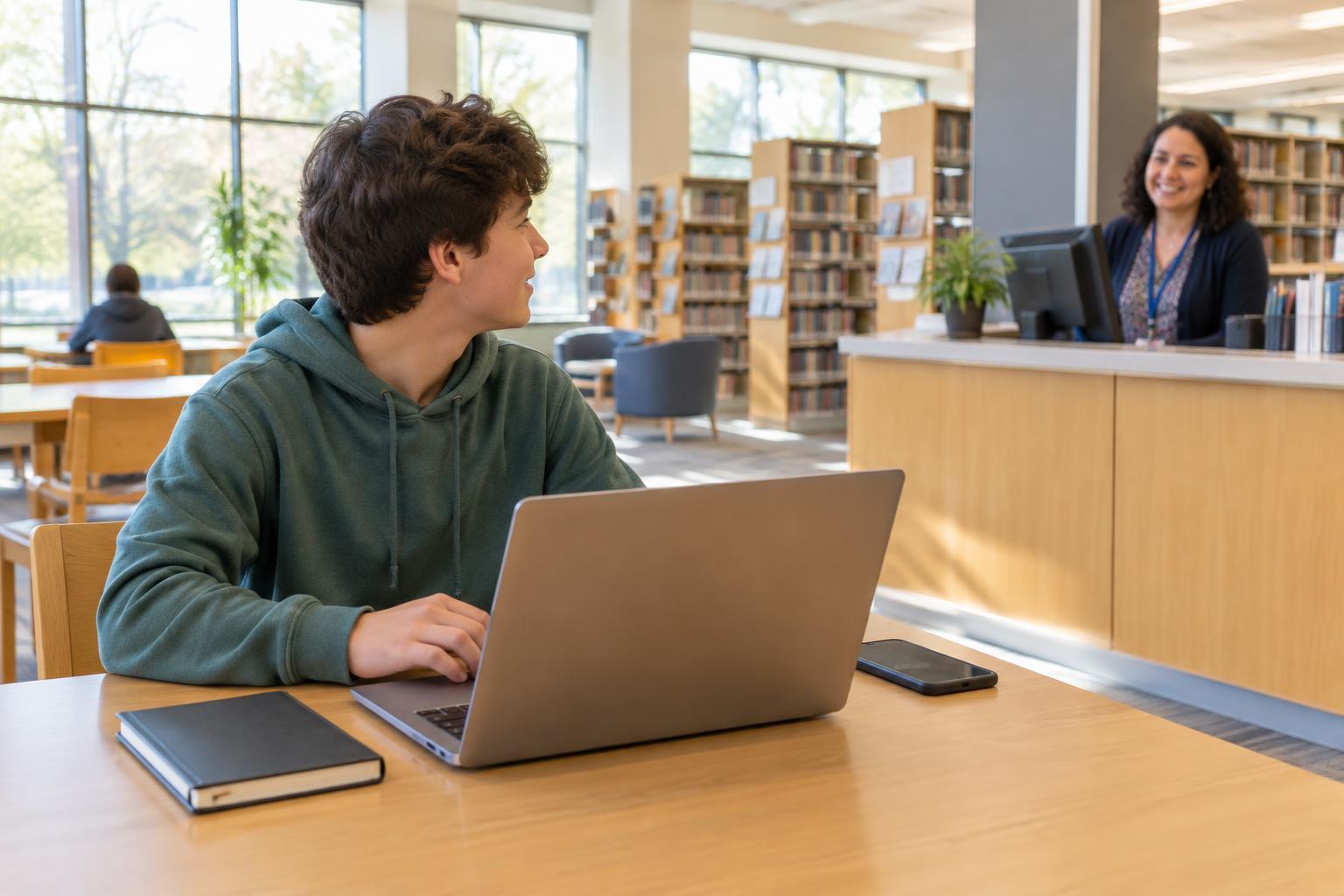
Public Wi-Fi is convenient when you need to download homework instructions or send a message away from home. Before joining, make sure you have the right network. A name that includes the café’s or library’s name may look convincing, but anyone nearby could create a network with a similar name. Check a posted sign or ask a staff member which network is theirs. Pay attention to spelling and to any instructions they give about joining.
If several networks look alike and you cannot confirm which one is official, do not guess. You can wait until you have a connection you trust or, if available, use your phone’s cellular data. Remember that cellular data may be limited by your plan. The goal is not to avoid every public network; it is to pause before giving your device a connection you know little about.
Treat sign-in pages with care
Some public networks open a sign-in page before you can browse. It might ask you to accept terms, enter a room number or use a code supplied by the location. Read what it requests. A page that suddenly asks for your email password, school account password or payment details deserves extra caution, especially if you were not expecting to provide them. Check with staff rather than entering information just to get online.
Once connected, look at the address of any site where you sign in. A secure website connection usually shows an address beginning with “https”; your browser may also show a lock or other connection indicator. This helps protect information traveling between your browser and that site, but it does not prove that the site itself is trustworthy. Check that the address is the one you meant to visit, particularly before typing a password.
Choose what can wait
A public network may be shared with strangers, and you usually do not control how it is set up. Browsing a school assignment or checking opening hours is different from handling a sensitive account. If you need to change a password, access private records or make a purchase, consider waiting for a connection you trust or using cellular data if that is an option.
If you do sign in to an account, use its usual website or app rather than following an unexpected link from a pop-up or message. An extra sign-in step, such as a code from an authenticator app, can help protect an account if someone learns your password. It does not make every network or website safe, so keep checking where you are entering information.
Set up your device before you leave home
A few device settings can reduce avoidable risks. Keep your operating system, browser and apps updated when you have a suitable connection. Turn off automatic joining for unfamiliar networks so your device does not reconnect to a network you did not choose. If your device offers file sharing or nearby sharing, review those settings before using a shared network.
A trusted virtual private network, or VPN, can add protection for some traffic on public Wi-Fi, but it is not a substitute for checking websites and links. It also shifts some trust to the VPN provider. You do not need to install an unfamiliar VPN simply because a public network suggests one. If a school or family already provides a VPN, ask how and when you are meant to use it.
Disconnect when you are done
When you finish, disconnect from the network and tell your device to forget it if you do not expect to use it again. This helps prevent an automatic connection later to a network with the same or a similar name. On a shared computer, sign out of your accounts and follow the location’s instructions for ending your session; closing a browser tab alone may not sign you out.
A useful routine is simple: confirm the network, question unusual sign-in requests, check website addresses and save sensitive tasks for a connection you trust. If something feels off, you can disconnect and ask for help. Taking a minute to check gives you more control over when and how you go online.