Know what you would miss
Imagine your phone stops working or a school laptop needs to be reset. Which files would be difficult to replace? Start with photos and videos that matter to you, school projects, creative work, and documents you have made yourself. Apps can often be downloaded again, but the story you wrote inside an app may not come back unless you saved a copy.
Make a short list of the places those files live: a phone, computer, tablet, school account or removable drive. Check inside apps as well as the usual folders. A drawing app, for example, may keep a project in its own library rather than in a folder you can easily see. Knowing what you have and where it is makes choosing a backup method much easier.
Keep a second copy somewhere different
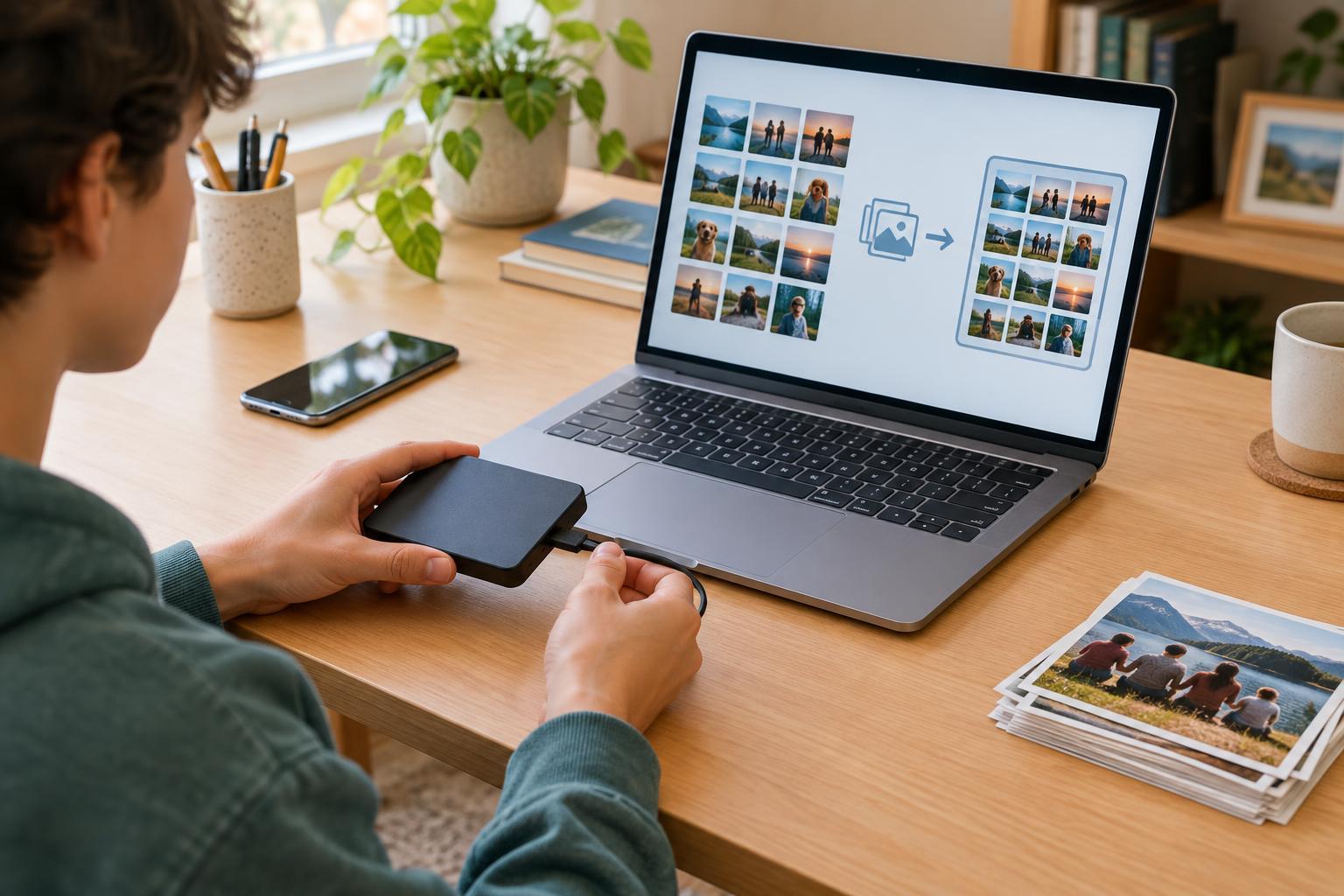
A backup is a spare copy you can recover from when the original is unavailable. Keeping a second copy in another folder on the same device offers little protection if that device is lost or damaged. Better options include an external drive kept in a safe place or a cloud storage account that you can access separately. If a file is especially important, using both gives you two different ways to recover it.
Each option has limits. A drive does not need an internet connection, but it can be misplaced or damaged. Cloud storage can make copying automatic, but it depends on your account access, available space and the service’s settings. If you use a family or school account, find out who can see the files and whether you will keep access to the account later. Ask a trusted adult before putting private family documents in shared storage.
Set up a routine you can keep
For photos, look for the backup setting on your phone or photo app. Check which account it uses, whether it includes videos, and whether it waits for Wi-Fi. For computer files, choose folders such as Documents, Pictures and your project folders, then set up an automatic backup if your device offers one. Some files may need to be exported from an app before another service can save them.
Automatic backup is helpful, but it is not something to assume is working forever. Storage can fill up, a device can be signed out, or a setting can change. Pick a simple check-in time, such as after a big project or once a month, to look for recent files in your backup. If you copy files to a drive by hand, give its folders clear names and update it regularly enough that you would not lose months of work.
Protect your copies and test them
Backups can contain personal photos, messages or documents, so protect them as carefully as the originals. Use a strong, unique password for a cloud account and turn on an additional sign-in step if it is available. Keep an external drive somewhere you will remember, rather than leaving it plugged into a computer all the time. On a shared device, check that your files are going to your account, not someone else’s.
To test a backup, pick one unimportant file and try to open its saved copy from the drive or cloud account. If the service has a restore option, learn where to find it before you urgently need it. Check that photos open at a usable size and that a project file still works in the app you use. A list of filenames is reassuring, but opening a file tells you more.
Understand syncing before you delete
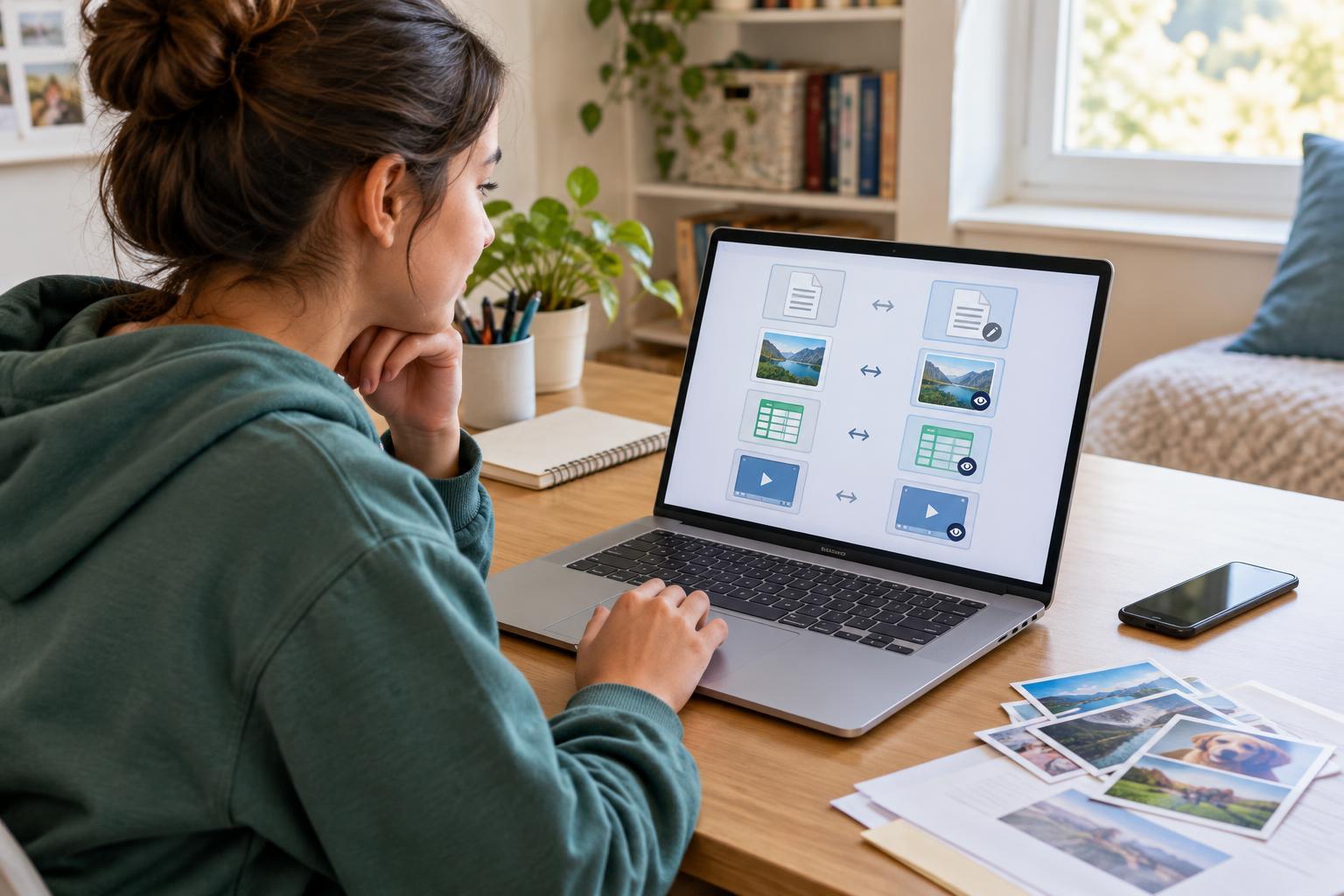
Syncing and backing up can look similar, but they do not always behave the same way. A synced folder may update across devices when you edit or delete a file. That is convenient for everyday work, yet it may also copy an accidental deletion. Some services offer a recently deleted folder or earlier versions, but how long they remain available varies. Before clearing space on your phone, check what deleting a photo will do to the copy you meant to keep.
A good first step is small: choose one folder or a few favorite photos, make a separate copy, and confirm you can open it. Then expand the routine to the rest of your important files. Backing up does not have to be complicated; it just needs to leave you with a copy you can find and use when you need it.