Start with the feature, not the request
An app permission is a choice about what an app can access on your device. A map may need your location to show where you are. A video-chat app may need your camera and microphone during a call. But a permission request is not proof that access is necessary. Before tapping Allow, ask: What am I trying to do, and how would this access help me do it?
The timing of the request can be a clue. If a camera app asks to use the camera when you open its viewfinder, the connection is clear. If an unfamiliar game asks for your contacts as soon as it opens, you can pause and look for an explanation. You do not need to decide that the app is dangerous to decide that you are not comfortable sharing your contacts.
Choose the narrowest access that works
Many devices offer more than a simple yes-or-no choice. Depending on the device and permission, you might be able to allow access only while using the app, share an approximate rather than precise location, or select particular photos instead of your whole library. These options can let you use a feature without giving the app more access than you intend.
Think about how long the feature needs the information. A weather app might use your location when you check the forecast, but you may prefer to enter a town instead. A photo-editing app might need the picture you are editing, not every picture you have saved. If a choice is unclear, try the more limited option first. You can often expand access later if a feature you want does not work.
Know what common requests involve
Location can reveal places you visit, especially if an app can use it in the background. Contacts may include other people’s names and details, so granting access affects more than just you. Photos and files can contain personal information even when you are only trying to share one item. Camera and microphone access may be essential for recording or calling, but you can still consider when the app needs them.
Notifications are different from access to your personal data, but they deserve a choice too. An app might send useful reminders, or it might interrupt you more often than you want. Some apps also request broader device access for special features. If a request sounds unusually powerful or you cannot connect it to a feature you plan to use, take time to read the explanation before agreeing.
Test, review and adjust
Saying Not Now is a useful way to learn what an app actually needs. Try the feature. If it does not work, the app may explain which permission would help. You can then decide whether that feature is worth the access. If the app works well enough without it, there is no need to grant permission just because it was requested.
You can also revisit earlier choices in your device’s settings. Look for an area labeled Privacy, Security, Apps or Permissions; names and options vary by device. Review apps you no longer use, permissions you granted for a one-time task and access that no longer matches how you use an app. Turning off a permission may stop a related feature, but you can usually turn it back on if you decide you need it.
Make permission choices a shared habit
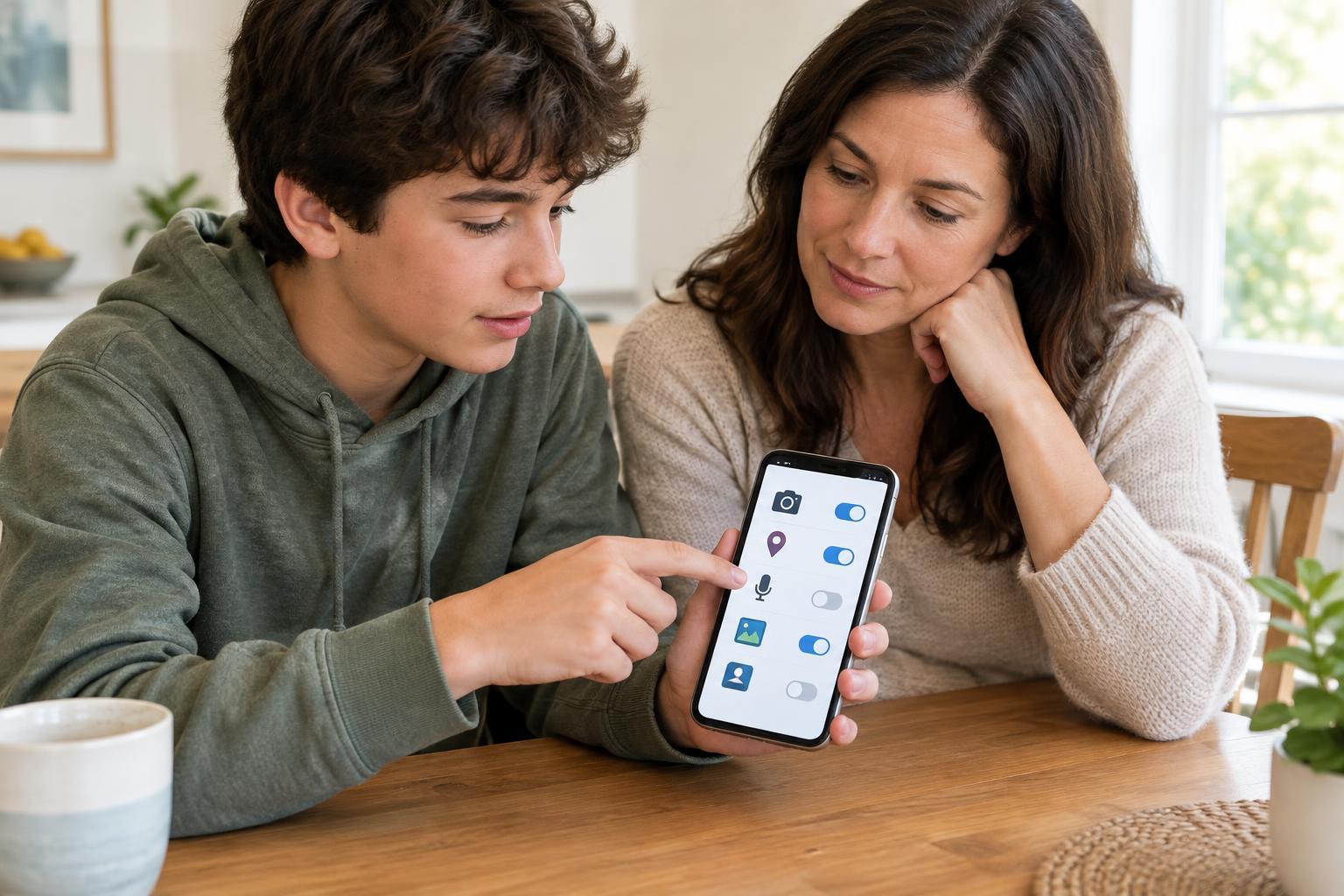
For teens and families, it can help to talk through a request rather than treat it as a test with one perfect answer. Ask what the app does, which feature needs access, what the available choices mean and whether there is another way to complete the task. These questions build judgment that applies to new apps, even when their screens and wording are different.
Permission settings are one part of digital literacy, not a guarantee of privacy. What you type, post or deliberately upload still matters. A steady habit is more useful than trying to memorize rules for every app: pause at the request, connect it to a feature, choose the least access that meets your needs and check the choice again when your needs change.